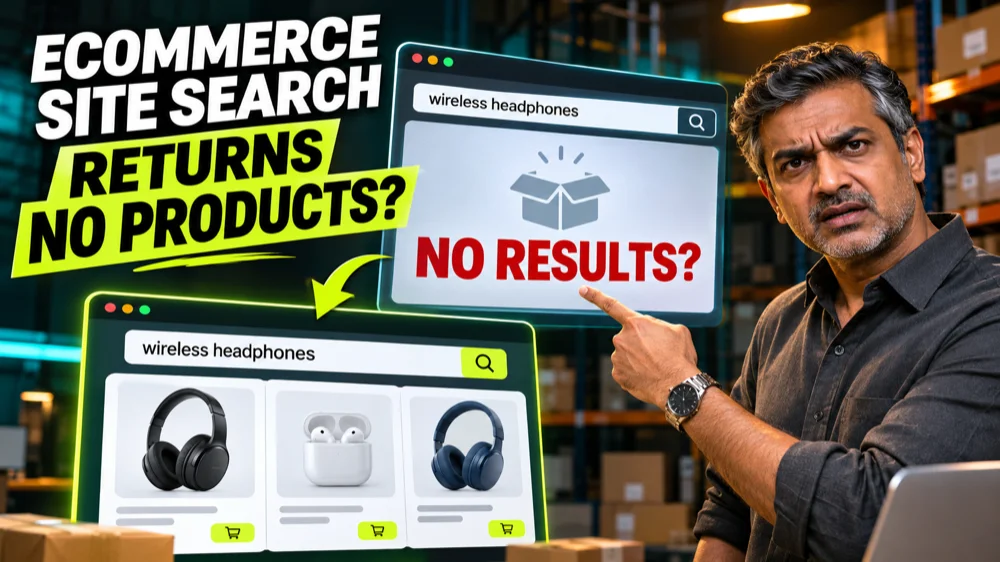
If a shopper searches for a product you sell and sees “no results,” start by finding out why that product was missed. A better empty page helps the shopper recover, but the first fix is often in product data, publication status, or search settings. Test one failed query against a known product, then improve the recovery path and watch for the same failure again.
This guide is for Shopify and WooCommerce store owners with a live catalog. It covers typed searches and the results they produce. Collection filters solve a different product-finding problem, so use the collection filter checklist when shoppers find the right collection but cannot narrow it down.
A useful first pass
- Save the exact failed query and the URL of a product that should match it.
- Check whether the product is published, available, and included in search.
- Try its exact title, SKU, a common customer synonym, and a misspelling.
- Give a genuine empty result an editable search field and a relevant next step.
- Repeat the test on a phone and review recurring failed queries.
01 Identify what kind of failure you have
Not every empty result means the same thing. A store might have the item, but its product record is unavailable to search. It might have the item under a different name. Or it may genuinely not sell the item. Those cases need different responses.
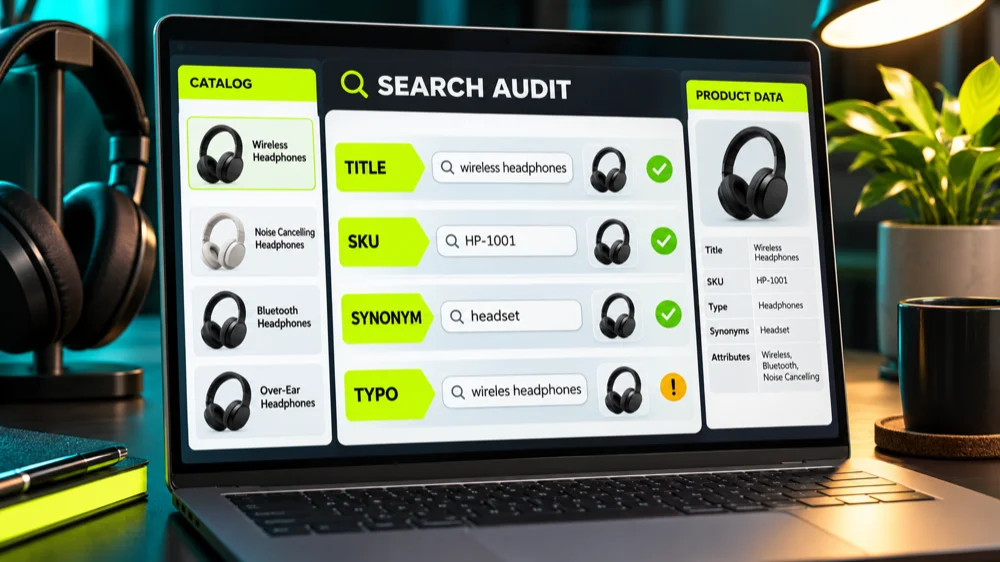
Write down the shopper's exact words, including spacing, model numbers, and spelling. Then choose one product that should appear. For example, if the store sells model HP-1001, test the full product name, HP-1001, a common term such as “headset,” and a realistic typo. This small test matrix tells you whether exact matching, searchable fields, vocabulary, or typo handling is failing. Baymard's search query research distinguishes exact, feature, and other query types that a single generic test can miss.
02 Check the catalog and search scope before redesigning the page
Open the product record. Is it published to the sales channel and visible to customers? Is it in the right collection or category? Does the title use a recognizable product type, and are model numbers or important attributes stored consistently? If the product is unavailable or deliberately hidden, decide whether search should show it with an availability message or omit it. Do not quietly present an unavailable item as purchasable.
On Shopify, predictive search can return products, collections, pages, articles, and query suggestions, depending on how it is requested. Shopify's predictive search UX guidance recommends a path to the full results page. Check both the suggestion panel and the submitted search result: a good suggestion is little help if the final results are empty. The Storefront API reference documents the resource types available to a custom implementation.
For WooCommerce, confirm which search feature the store actually uses. The core Product Search block and a separate search extension can have different fields, matching rules, and indexes. For example, the optional WooCommerce Product Search extension lets its Product Search Field search titles, excerpts, categories, attributes, and SKUs when configured. Do not assume those extension options exist in every WooCommerce store. If an exact product search fails after a plugin or catalog change, also check whether the active search index is complete.
03 Make a genuine no-results page a useful next step
Sometimes there really is no match. Tell the shopper what happened without blaming their spelling. Keep their query visible in an editable field so they can remove a word or try a related term. Offer a relevant category when you can make that connection honestly, and provide a clear contact or help route for a specific item request. An unrelated “popular products” grid can look like a false search result unless it is clearly labeled as a separate suggestion.
WooCommerce's Product Search Results template includes a No Results section with a search field that lets shoppers try again. Review the actual template and mobile layout rather than assuming the default block placement is enough. Baymard's no-results examples show how a dead-end page leaves shoppers to invent their own recovery route.
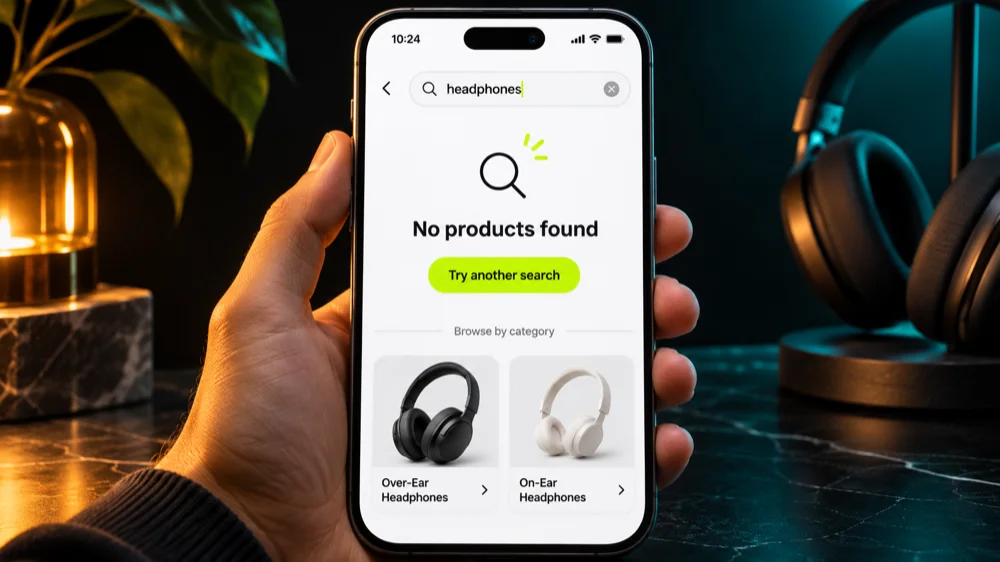
Test this page with a keyboard and a phone. The search field must be labeled, its submit action usable, focus visible, and the result message understandable without relying on color. If suggestions appear while typing, make sure a customer can reach and dismiss them without getting trapped. These checks also make the next attempt easier for a shopper using touch or assistive technology.
04 Prioritize recurring failures from real queries
Put failed queries into three groups: products you sell, products you do not sell, and informational requests such as shipping or returns. Fix “we sell it but cannot find it” first. A repeated SKU failure points to a different fix from a repeated synonym failure. Informational queries may need a link to an existing policy page if the search experience supports that content type.
Use whatever query evidence your current setup actually provides. The optional WooCommerce Product Search extension has a report for queries without results; other stores may use their own analytics or search provider reports. Review frequency alongside business relevance. One rare typo for a discontinued item should not outrank a repeated exact-name failure for a current product. Record the original query, expected result, cause, fix, and retest outcome so the problem does not quietly return.
05 Mistakes that keep shoppers stuck
- Polishing the empty page while a published, in-stock product still cannot be found by its exact name.
- Testing only a product title when customers use SKUs, abbreviations, or everyday names.
- Assuming every WooCommerce search plugin uses the same fields or keeps its index current.
- Showing unrelated products as if they matched the submitted query.
- Removing the original query when the shopper reaches the results page.
- Checking autocomplete on desktop but never submitting a search on a phone.
- Adding new search software before identifying the failing query type.
Once shoppers reach the right item, the product page accessibility checklist helps assess the next step of their journey.
06 Ecommerce no-results FAQs
Why does search show no products when the item is in my store?
First confirm the product is published and eligible to appear. Then test its exact name and SKU, and inspect the fields your current search feature uses. If exact matching works but a customer term fails, review product language or search synonyms.
Should I show products on a no-results page?
Only show alternatives that help with the shopper's task, and label them as suggestions. Keep the failed query and an easy way to edit it. A random grid should not appear to be a set of matches.
Will autocomplete fix empty search results?
It can guide a query, but it cannot fix hidden products, poor catalog data, or broken indexing. Submit the query and test the full result as well as the suggestions.
What should I fix first if many searches fail?
Start with repeated searches for products you currently sell. Separate exact-name or SKU failures from vocabulary and typo failures, then address the underlying cause. Improve the empty state for genuinely unmatched searches in parallel.
Have failed searches for products you sell? Tijo Creative can review product data, search behavior, and the mobile recovery path in a Shopify or WooCommerce store. Bring two failed queries and the product URLs you expected to see, then contact Tijo Creative about a focused search review.
FAQ
Common questions about Ecommerce Search Shows No Results: What Should You Fix First?
A quick summary of the most common questions readers have about this topic.
The product may be unpublished or excluded, its title or searchable fields may not match the query, or the search setup may not include the field the shopper used. Reproduce the exact query, confirm the product is available, and inspect the search configuration before changing the page design.
It can, if the suggestions are genuinely related and clearly labeled. Keep the original query visible, let shoppers edit it, and offer a relevant category or support route. Do not imply unrelated products match their search.
No. Suggestions can help people refine a query, but they cannot repair missing product data, excluded products, or a search index that is not working. Test the submitted results page as well as the suggestion list.
Start with repeated queries for products you sell, especially exact names, SKUs, and common customer terms. Then review searches for products you do not carry and decide whether a helpful alternative or clear explanation is possible.