

A shopper who knows their size should not have to open every product to find it. Good ecommerce collection filters expose the few attributes that settle a buying decision, show what is selected, and let the shopper recover when a combination returns nothing. Start your audit with a real shopping task, then check the catalog data, mobile interaction, and filter URLs behind it.
This guide is for Shopify and WooCommerce store owners who already have a product catalog. It focuses on improving collection and shop page discovery, rather than the product page buying path or checkout.
A five-step first pass
- Pick one collection and a specific product-finding task.
- Check whether the filter labels match how customers describe products.
- Apply two filters on a phone and verify the actual results.
- Remove one filter, clear all, and test an empty result.
- Review which filtered URLs can be crawled and indexed.
01 Start with the decision, not the filter menu
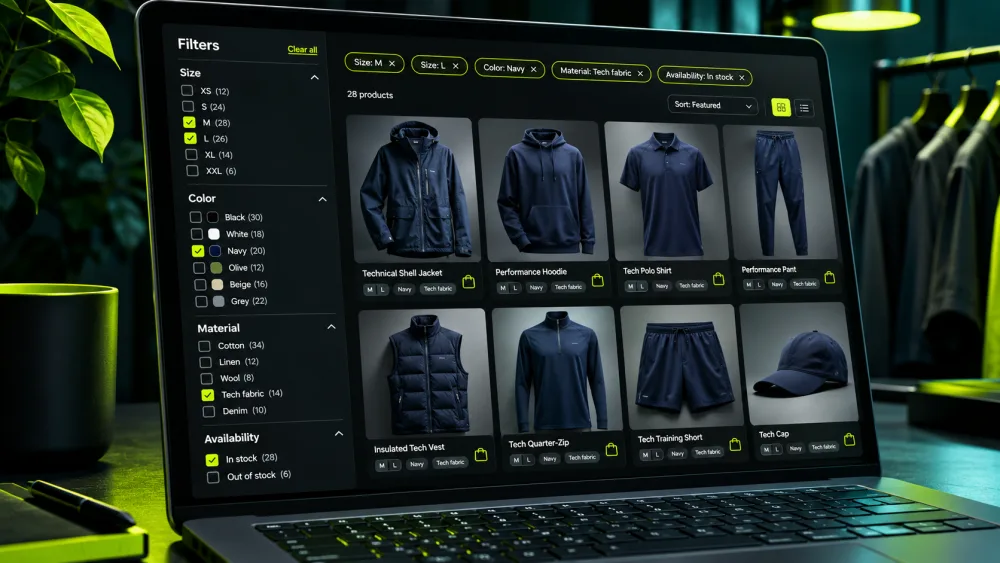
Imagine a customer looking for a navy linen shirt in size M. The useful filters are probably size, color, material, and availability. A vendor or product-tag filter adds little unless customers genuinely use those terms. For a replacement appliance part, compatibility may matter more than color. Write down two or three tasks for each major collection before changing the interface.
Inspect the underlying catalog next. If half the products lack a material value, the material filter may hide suitable products or produce misleading results. Normalize values such as “navy” and “dark blue” deliberately, and decide whether they should appear as one option or two. A polished filter drawer cannot repair inconsistent product data.
02 Make selected filters and results easy to understand
After a choice is applied, show its label where shoppers can see it without reopening the entire panel. Provide a way to remove one choice and a clear-all action. Show the updated product count if the platform and theme can do so reliably. A filter that silently changes the grid leaves customers guessing whether their tap worked.
Test each option against products you know are in the catalog. If a “Medium” filter returns a product whose available variant is only “Large,” investigate whether the filtering logic checks products or purchasable variants. The right behavior depends on the store's setup, but the result must make sense to the shopper who opens that product.
When a combination has no matches, explain that no products match the current selections and provide an obvious route back. Let the shopper remove a chip or clear all filters. Avoid a blank grid that looks like a loading or network failure.
03 Test the whole flow on mobile
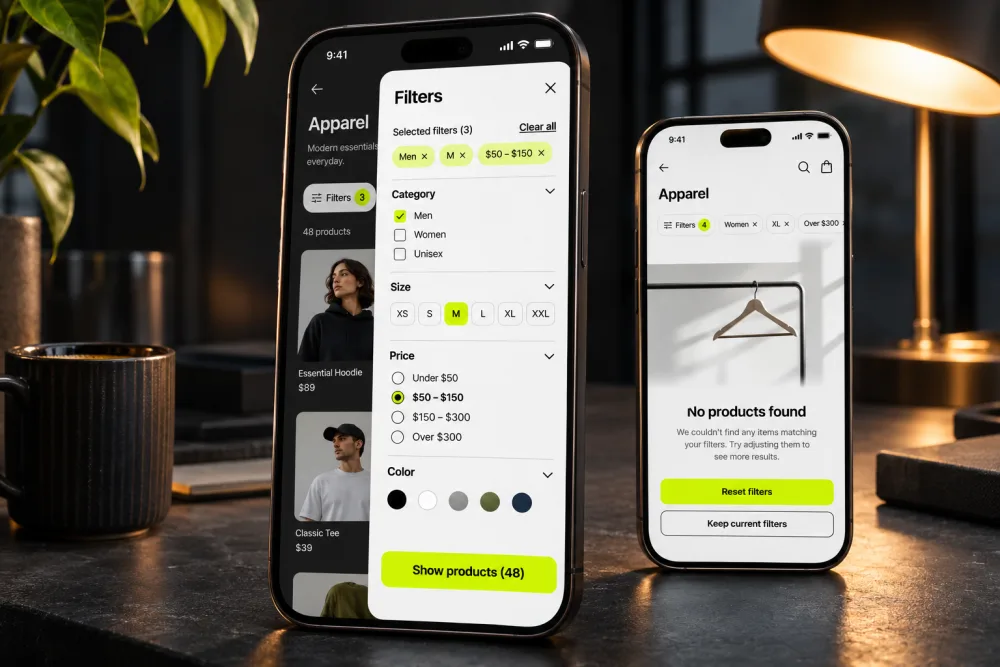
Open a real collection on a phone. Can you find the filter entry point without searching for it? Select two options, apply them, and confirm that the product grid changes. Open the controls again and check whether your selections remain visible. Remove one option, then use clear all. Repeat with a combination that yields no products.
Check keyboard access too. A drawer should be operable without a mouse, focus should remain visible, and closing it should return focus sensibly. Test at enlarged text and a narrow viewport so long option names and action buttons remain usable. These checks matter even if the desktop sidebar looks fine.
Sorting is a different decision. “Price: low to high” changes the order of products; a price range removes products outside that range. Label and place the controls so shoppers can tell the difference.
04 Use the platform features deliberately
On Shopify, storefront filtering supports criteria including availability, price, variant options, and metafields. Before changing a theme, confirm the merchant's desired filters exist in the admin and that products have the needed values. Shopify's filtering UX guidance discusses how the layout, labels, and active filters should behave.
On a WooCommerce block-based catalog, the core Product Filters block can filter by price, rating, attributes, availability, and exposed taxonomies. Its product list usually updates without a full page reload, although the surrounding Product Collection can be configured to reload. Test the actual theme and extensions rather than assuming that every WooCommerce store uses the same filter component.
05 Decide what filtered URLs should do in search
Filters may create many URL combinations. A shopper may need those combinations during browsing, but that does not mean each one needs to be a search landing page. Google's faceted navigation guidance recommends deciding whether these URLs need to be crawled and, when they do, constraining the URL space. Its ecommerce site structure guidance also stresses that important pages remain reachable through links.
Make this a separate review from the visual filter audit. List the valuable collection pages you intentionally want people to find in search, then inspect how filter parameters, links, canonicals, and crawl controls work on the live store. Do not apply a blanket URL rule without checking whether it would hide a genuinely useful page.
06 Common mistakes to catch before launch
- Adding every possible attribute as a filter, even when customers do not use it.
- Publishing a filter before product data is complete and consistent.
- Showing a color swatch without a readable color name.
- Hiding active selections inside a closed mobile drawer.
- Leaving an empty result with no way to reset.
- Testing only desktop or only the unfiltered collection.
- Allowing unlimited filter combinations to become crawlable without an SEO plan.
If your customer can find the right item but struggles to choose its options, use the product page accessibility checklist. If the problem happens after adding it to the cart, the mobile checkout audit covers that next step.
07 Collection filter FAQs
Which filters should I add first?
Choose the attributes that resolve common buying decisions in that collection, then confirm the product data supports them. Size, material, compatibility, availability, and price are candidates, not a universal checklist.
Should Google index every filter combination?
No. Decide whether a combination deserves a distinct search page. Uncontrolled faceted URLs can consume crawl resources, so review the URL strategy for the actual catalog.
How can I tell whether the mobile filters work?
Complete a real product-finding task on a phone. Apply two options, inspect the results and active choices, remove one, clear all, and recover from an empty result.
Can I use one filter set for the entire store?
Shared controls may be practical, but show only attributes that make sense for each collection. A filter that is useful for clothing may be irrelevant to electronics or furniture.
Need a clearer route through your catalog? Tijo Creative can review collection templates, product data, and mobile filtering in a Shopify or WooCommerce store. Bring a collection URL and one product-finding task, then get in touch about a focused filter review.
FAQ
Common questions about Ecommerce Collection Filters: What Should Your Store Fix First?
A quick summary of the most common questions readers have about this topic.
Start with attributes customers use to decide, such as size, material, compatibility, price, or availability. Check that product data is complete before adding a filter, and use a real shopping task to decide which options deserve prominence.
No. Decide whether a filtered combination deserves a distinct search page before allowing it to be crawled and indexed. Large numbers of combinations can waste crawl resources, so review Google's faceted navigation guidance with an SEO specialist.
Open a collection on a phone, select two filters, apply them, confirm the resulting products and active choices, remove one choice, then clear all. Repeat with a combination that returns no products.
Only when the attributes are meaningful in each collection. A fabric filter may help with clothing but confuse shoppers browsing electronics. Review the catalog and customer decisions by collection.