
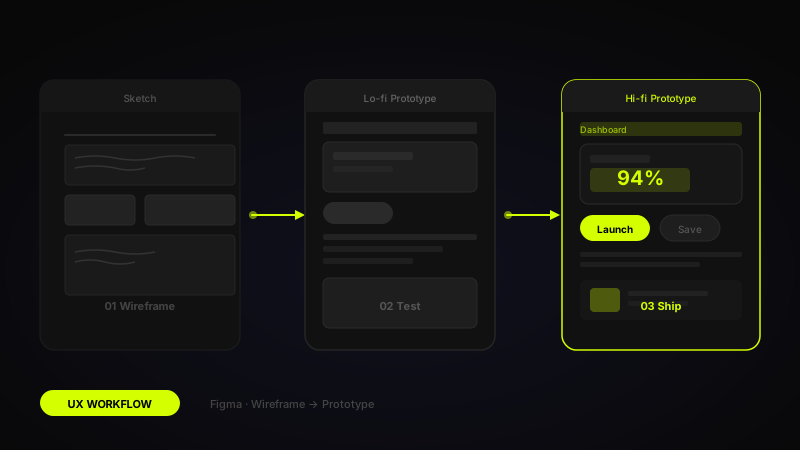
Every polished Figma prototype starts with a messy problem and a blank notebook page. The gap between those two points, the actual UX workflow, is where good design is made or lost. This is the exact process I follow on every project.
01 Define the Problem First
The most expensive mistake in UX is designing the wrong thing with great craft. Before any design tool is opened, I spend time writing a crisp problem statement: who is experiencing it, what they are trying to achieve, and what is getting in the way. A useful format is "How might we help [user] achieve [goal] so that [outcome]?", it keeps the team aligned on intent rather than solution.
Problem definition also means talking to real users. Even three to five short interviews will surface assumptions you didn't know you were making. I use a simple interview guide: open with their current workflow, probe for frustrations, close with "what would the ideal experience look like?" Record everything and synthesise into insight clusters before moving a single pixel. If you are looking for that kind of structured thinking on a live business project, my web design service page shows how that process carries into real website work.
The foundational UI design principles I rely on, hierarchy, affordance, feedback, only apply correctly once you understand what the user is actually trying to do in the moment. Principles without context produce beautiful interfaces that nobody can use.
02 Sketch Before You Open Figma
There is a temptation to jump straight into Figma, it feels productive, and the results look professional. Resist it. Pen and paper sketching at the start of a project is categorically faster for exploring a large number of ideas because there is zero friction between thought and mark. A bad idea dies in seconds on paper; in Figma it can cost hours.
I sketch six to eight rough layout concepts per screen in a single session, aiming for breadth rather than refinement. Each sketch takes no more than three minutes. After sketching, I do a quick self-critique pass: which layouts have the clearest hierarchy? Which require the fewest taps to complete a key action? Those two questions cut the candidates from eight down to two or three worth exploring further.
Involve stakeholders at this stage, not after hi-fidelity screens are done. A photograph of a napkin sketch sent over Slack gets more honest feedback than a polished Figma frame, because people feel safe critiquing something that looks unfinished.
"The fidelity of your design tool should match the fidelity of your thinking. In early exploration, a pen beats Figma every time."
03 Build Low-Fidelity Wireframes
Once the best sketch directions are chosen, I move into Figma for low-fidelity wireframes. I use a simple greyscale kit with placeholder rectangles for images, "Lorem ipsum" for body copy, and real text only for labels and navigation items. The goal at this stage is layout and flow validation, nothing else.
Every wireframe frame in my Figma file is named with a format: [Screen] / [State], for example, "Checkout / Empty Cart" or "Dashboard / Loaded". This naming convention pays dividends when you are building the prototype later, because you can navigate frames quickly and hand off a well-structured file to developers. I also use Figma's Sections feature to group related screens, which makes presenting and navigating large projects far more manageable.
One wireframing rule I never break: every screen must show at least two states, the ideal state (data loaded, form filled correctly) and the edge-case state (empty, error, loading). Designing only the happy path is how products end up with broken empty states that make users feel lost.
Wireframing Checklist
- Every screen has a named frame following a consistent convention
- Happy path and at least one edge case (empty, error, loading) per screen
- Navigation and primary CTAs are clearly identifiable even in greyscale
- Information hierarchy is clear without any colour or styling applied
- Stakeholder sign-off obtained before moving to prototype or hi-fidelity
04 Add Interactions and Flows
Figma's prototype panel is where wireframes come alive. I connect frames using smart animate transitions for screen-to-screen flows and use component variants with interaction triggers for in-place interactions like button states, dropdown opens, and form validation feedback. The goal is for a test participant to be able to navigate the prototype without narration from me.
I keep prototype fidelity intentionally low at this stage, no custom animations, no real data, no polished visuals. The interaction prototype exists to answer one question: can a user complete the core task flow without confusion? If they can't, fixing it now costs nothing. Fixing it after hi-fidelity screens are built and engineers have started implementation is expensive and demoralising for everyone involved. That same flow discipline shaped this mobile app UI for food delivery case study, where the product structure had to stay clear before any visual polish could do its job.
For products where micro-interactions are a meaningful part of the experience, onboarding animations, progress indicators, gesture-based navigation, I note these in the prototype with annotation stickers rather than building them at this stage. This keeps the prototype fast to iterate on while ensuring the interactions are documented for the hi-fidelity phase.
05 Run Usability Tests
Five users will expose roughly 85% of your usability problems, this is a well-validated finding from Nielsen Norman Group research and it holds true in my experience. I recruit participants who match the target user profile and run moderated sessions over video call, sharing the Figma prototype link and asking them to think aloud as they attempt two to three core task scenarios.
The most important rule of usability testing: do not help. When a participant is confused, resist every instinct to explain or guide. Their confusion is data. Note exactly where they pause, what they click on incorrectly, and what language they use to describe what they expect to happen. That language often reveals a labelling or mental model mismatch that no amount of internal review would have caught.
After testing, I synthesise findings into a simple priority matrix: critical issues (block task completion), major issues (cause significant confusion or delay), and minor issues (cosmetic or preference-based). Critical issues are fixed before hi-fidelity design begins. Major issues are addressed in the first design iteration. Minor issues go into a backlog.
"Testing with five users and acting on the findings is ten times more valuable than testing with fifty and filing the report away."
06 Handoff to Developers
A great design handed off poorly leads to a mediocre product. Developer handoff is not a moment, it is a process. I move into hi-fidelity design using our established design system components, which means developers can inspect values directly from the design file rather than relying on redline annotations. Every spacing value, colour, and type style references a named token.
I prepare a dedicated handoff frame for each screen: a side-by-side layout showing the final design, annotated with notes on interaction behaviour, edge cases, and any responsive breakpoint considerations. For complex interactions, I record a short Loom walkthrough rather than trying to document motion in text. A 90-second video explaining an animation is worth more than three paragraphs of spec copy.
I stay available during implementation, answering questions in Slack, reviewing builds in staging, and flagging deviations before they reach production. The handoff is a collaboration, not a hand-washing. The design's quality in production is the only quality that matters to users. You can see that kind of designer-to-developer continuity in this STEM education platform UI case study, where the UX work depended on structured states and a clean implementation path. For ecommerce-focused builds, the same thinking also carries into my Shopify development service and WooCommerce service page.
Handoff Readiness Checklist
- All components use design system tokens, no ad-hoc colours or spacing
- Every interactive element has all states designed (hover, active, disabled, error)
- Responsive behaviour is documented for key breakpoints
- Complex animations are recorded as a walkthrough video
- Edge cases (empty states, errors, loading) are designed and annotated
Great UX work is not about tools or deliverables, it is about making the right decisions at the right fidelity. This workflow is not rigid; every project demands adaptation. But the underlying logic is constant: define the problem clearly, explore broadly, validate early, and handoff with care. Follow that sequence and your designs will land in production looking and behaving the way you intended.
FAQ
Common questions about From Wireframe to Prototype: My Complete UX Workflow in Figma
A quick summary of the most common questions readers have about this topic.
A UX workflow is the step-by-step process a designer follows from problem definition and research through wireframing, prototyping, testing, and developer handoff.
Sketching is faster and lower-friction for early exploration. It helps designers test more ideas quickly before committing time to polished screens.
Wireframes focus on layout, structure, and flow, while prototypes simulate interaction and help teams test how the product behaves.
Even three to five users can reveal major usability issues in an early round, especially when the goal is to find patterns rather than generate statistical certainty.
A strong handoff includes well-named frames, clear states, documented interactions, reusable components, and enough context for developers to build confidently.